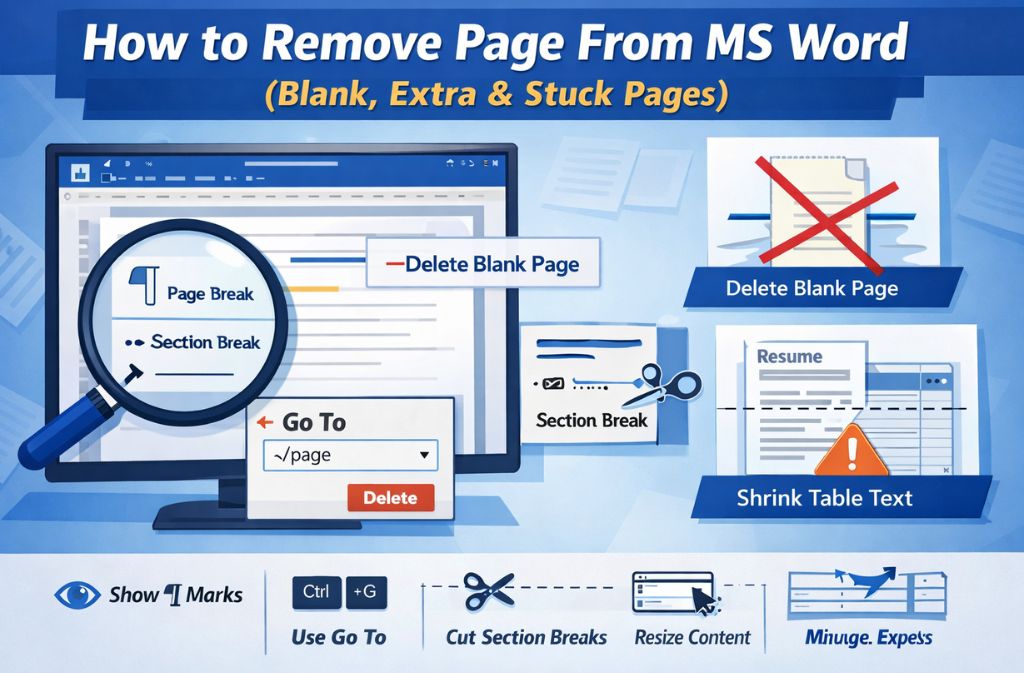
That extra page in Microsoft Word rarely appears at a convenient moment. It shows up right before you submit a report, print a resume, or export a document to PDF—and no matter how many times you hit Backspace, it refuses to disappear.
That frustration is exactly why “how to remove a page from MS Word” remains one of the most searched Word problems every year. The issue isn’t user error. It’s that Word relies on invisible formatting rules—page breaks, section breaks, tables, and hidden paragraph marks—that quietly force pages into existence.
Most tutorials explain what to click. Very few explain why the page is there or how to remove it without breaking the rest of your document.
This guide does both.
You’ll learn:
-
Why do unwanted pages appear in Word
-
The fastest, safest way to remove any page
-
How fixes differ on Windows, Mac, Word Online, and mobile
-
What to do when a page simply won’t delete
Everything here reflects Microsoft Word behavior as of 2026 (Word 365, Word 2021+, and current macOS versions).
The 2-Minute System to Remove Any Page in MS Word
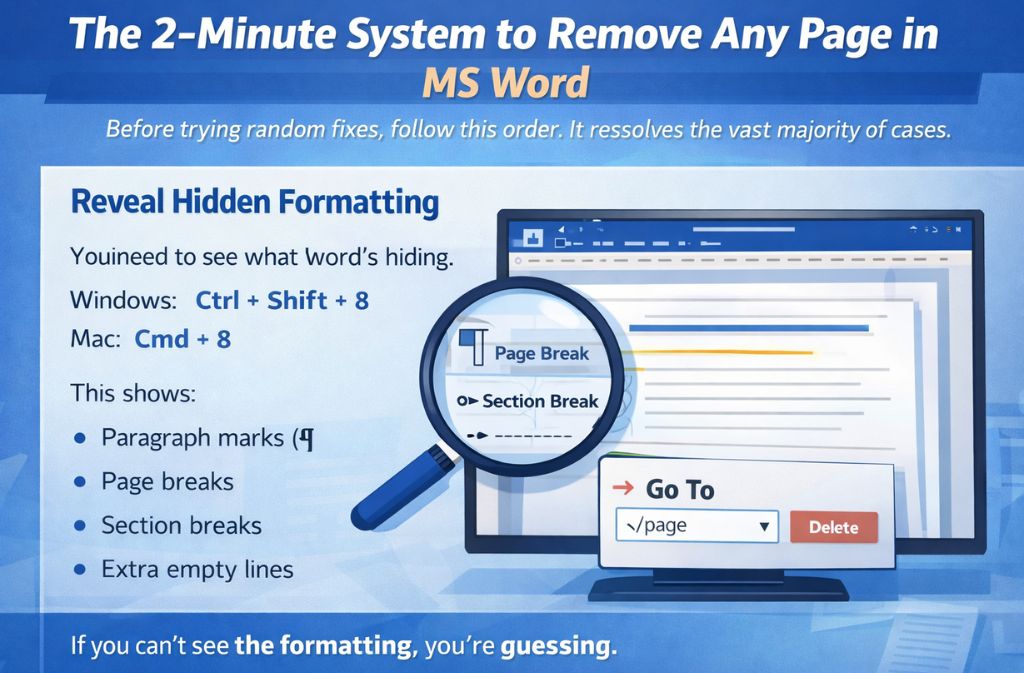
Before trying random fixes, follow this order. It resolves the vast majority of cases.
Reveal Hidden Formatting
You need to see what Word is hiding.
-
Windows:
Ctrl + Shift + 8 -
Mac:
Cmd + 8
This shows:
-
Paragraph marks (¶)
-
Page breaks
-
Section breaks
-
Extra empty lines
If you can’t see the formatting, you’re guessing.
How to Remove a Page From MS Word (By Page Type)
Remove a Normal Page With Text
This is the fastest and cleanest method.
-
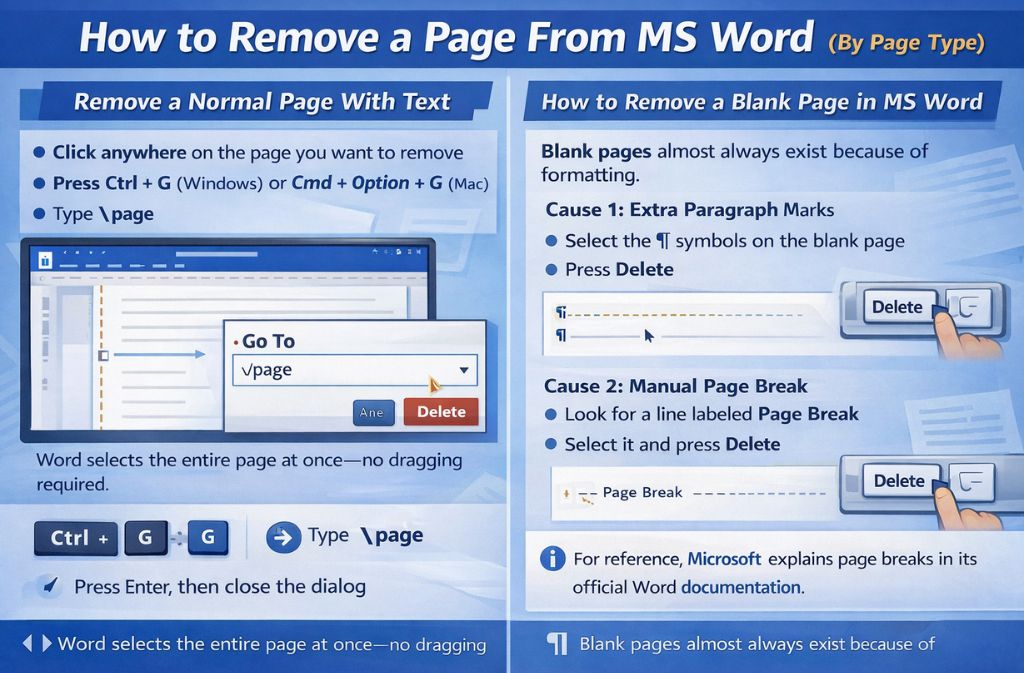
Click anywhere on the page you want to remove
-
Press Ctrl + G (Windows) or Cmd + Option + G (Mac)
-
Type
\page -
Press Enter, then close the dialog
-
Press Delete
Word selects the entire page at once—no dragging required.
How to Remove a Blank Page in MS Word
Blank pages almost always exist because of formatting.
Cause 1: Extra Paragraph Marks
-
Select the ¶ symbols on the blank page
-
Press Delete
Cause 2: Manual Page Break
-
Look for a line labeled Page Break
-
Select it and press Delete
For reference, Microsoft explains page breaks in its official Word documentation.
How to Delete the Last Blank Page in Word (Most Common Problem)
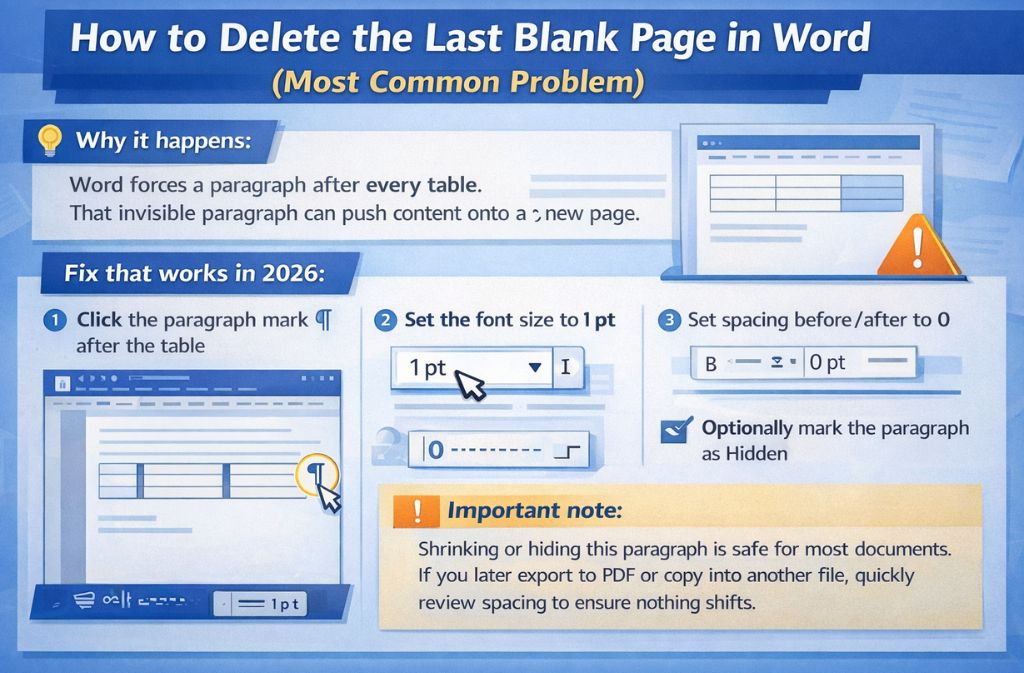
This happens frequently when a document ends with a table.
Why does it happens?
Word forces a paragraph after every table. That invisible paragraph can push content onto a new page.
Fix that works in 2026:
-
Click the paragraph mark (¶) after the table
-
Set the font size to 1 pt
-
Set spacing before/after to 0
-
Optionally mark the paragraph as Hidden
Important note:
Shrinking or hiding this paragraph is safe for most documents. If you later export to PDF or copy content into another file, quickly review spacing to ensure nothing shifts.
Section Breaks: The Page That Won’t Delete
Section breaks control layout elements like headers, footers, and page numbering.
-
Turn on formatting marks
-
Find Section Break (Next Page)
-
Delete it or replace it with Section Break (Continuous)
Microsoft’s guidance on section breaks confirms this behavior and limitation.
This preserves formatting while removing the forced page.
How to Remove a Page in Word on Windows vs Mac
| Feature | Windows | Mac |
|---|---|---|
| Reveal formatting | Ctrl + Shift + 8 | Cmd + 8 |
| Go To page | Ctrl + G | Cmd + Option + G |
| Navigation Pane | Full | Limited |
| Section tools | Easier access | Slightly hidden |
Mac users often struggle because layout tools are less visible—but the same fixes apply.
Word Online & Mobile: What You Can’t Fix There
Word Online has real limitations:
-
Section breaks cannot be deleted
-
Advanced layout controls are missing
Best workaround (Microsoft-recommended):
Use File → Open in Desktop App to remove stubborn pages.
Mobile apps are designed for viewing and light edits, not layout repairs. Always switch to desktop for page deletion issues.
Common Mistakes That Make It Worse
-
Deleting headers instead of section breaks
-
Removing content instead of formatting
-
Ignoring hidden paragraph marks
-
Copy-pasting broken formatting into new documents
-
Printing or exporting before checking layout
These mistakes often create more pages, not fewer.
Real-World Example: Resume With an Extra Page
A two-page resume becomes three pages because:
-
A table-based layout forces a final paragraph
-
A template includes a hidden section break
Using the steps above, the fix takes under one minute—without reformatting the resume.
Quick Cheat Sheet (Save This)
-
Blank page → Show 
-
Page won’t delete → Go To →
\page -
Last blank page after table → Shrink paragraph
-
Header issue → Section break problem
-
Word Online stuck → Open in Desktop App
FAQs
Q. Why can’t I delete a page in Word?
You usually can’t delete a page in Word because hidden formatting—such as section breaks, tables, or extra paragraph marks—forces Word to create an extra page.
Q. How do I delete a blank page in Word that won’t delete?
Turn on formatting marks (¶) to reveal page breaks or hidden paragraphs, then delete the break or shrink the paragraph after a table.
Q. What’s the fastest way to delete a page in Word?
The fastest way is to use Go To (\page) to select the entire page, then press Delete.
Q. How do I delete a blank page in Word on Mac?
Press Cmd + 8 to show formatting marks, then remove page breaks or extra paragraph marks causing the blank page.
Q. How do I remove a page in Word without deleting text?
Delete the formatting element—such as a page break or section break—instead of removing the content itself.
Q. Why does Word always add a blank last page?
Word adds a blank last page when a table forces a required final paragraph, which can push content onto a new page.
Conclusion
Removing a page from MS Word isn’t about pressing Delete harder—it’s about understanding what Word is protecting behind the scenes. Page breaks, section breaks, tables, and hidden paragraphs all exist for a reason, even when they’re inconvenient.
Once you identify what type of page you’re dealing with, the fix becomes fast and predictable. That’s the difference between fighting Word and controlling it.
If this guide saved you time, keep it bookmarked. As of 2026, these Word quirks still exist—and knowing how to handle them is a real productivity skill.
Related: How to Search for a Word in Any Website (2026 Complete Guide)