
ouScrolling endlessly to find a single word is one of the quiet frustrations of the modern web. You know the text is there—you’ve seen it before—but it refuses to show up when you need it. What should take seconds turns into minutes of guessing, scanning, and second-guessing.
Knowing how to search for a word in a website isn’t just a browser shortcut. It’s a practical skill that saves time when you’re researching, studying, troubleshooting, fact-checking, or working inside long documentation pages and web apps.
Most guides stop at “press Ctrl + F.” That advice is useful—but incomplete. In 2025 and moving into 2026, many websites load content dynamically, hide text behind modern UI components, or render words inside images and videos.
This guide shows every reliable way to search for words on a website, from basic browser tools to advanced techniques that work even when standard search fails. You’ll also learn which method to use in each situation, common mistakes to avoid, and expert-level fixes for modern web pages.
| How do you search for a word in a website? Use Ctrl + F (Windows) or Cmd + F (Mac) to search a single page. To search an entire website, use Google with site:website.com keyword. |
What This Guide Helps You Do
What you want:
-
Find a specific word or phrase quickly
-
Search a single page or an entire website
-
Search work on desktop, mobile, PDFs, and modern web apps
Common frustrations:
-
Ctrl + F doesn’t find text you know exists
-
Mobile browsers hide search tools
-
Internal site search gives incomplete results
-
Text is loaded dynamically or hidden
-
Words are inside images or videos
This guide addresses all of those scenarios.
Method 1: Search a Single Web Page (Ctrl + F / Cmd + F)
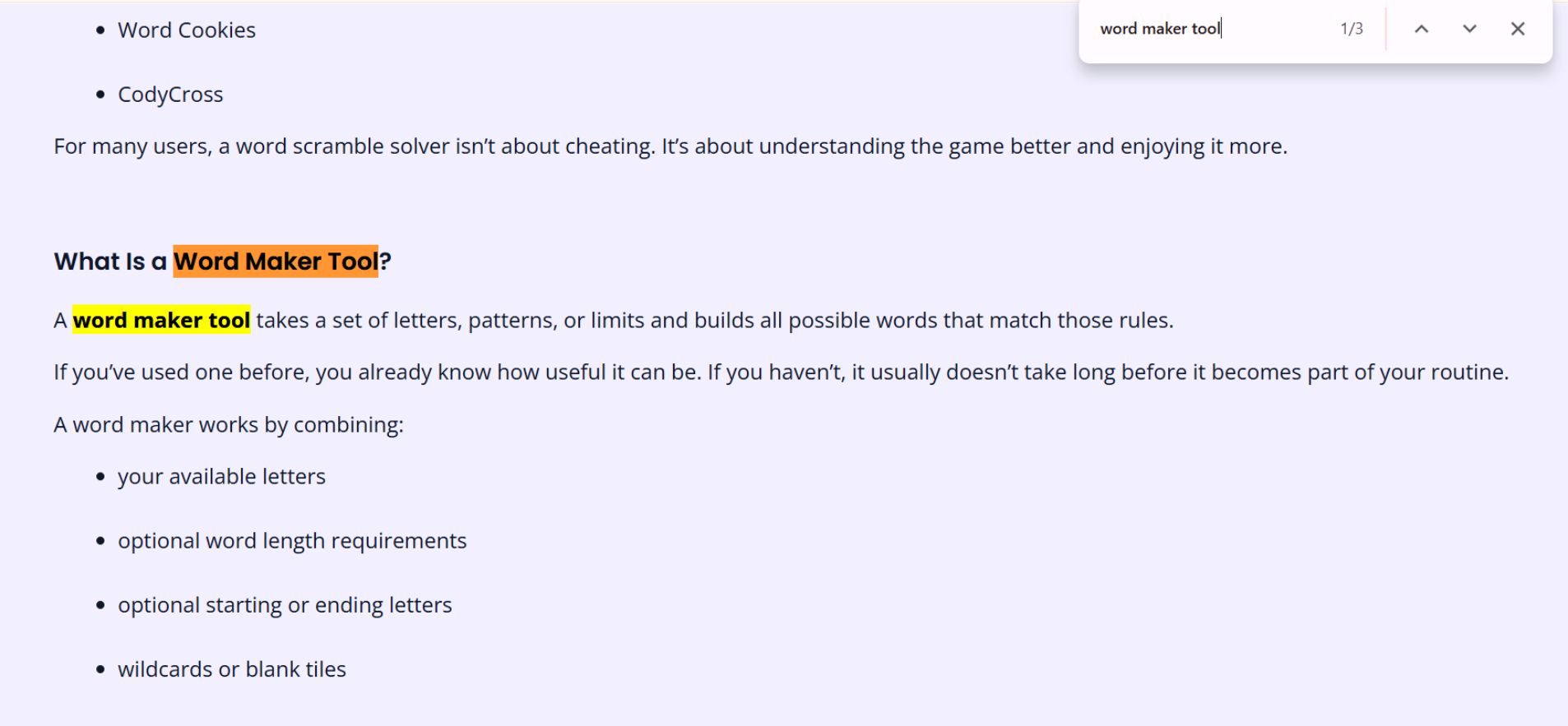
Best for: Quickly finding visible text on one page
The fastest way to search for a word on a website page is your browser’s built-in Find feature.
How to use it:
-
Windows / Linux:
Ctrl + F -
Mac:
Cmd + F -
Type the word or phrase
-
All visible matches are highlighted instantly
Limitations you should know
Ctrl + F:
-
Searches only the current page
-
Cannot see text hidden in collapsed menus or tabs
-
May miss content that loads after scrolling
-
Cannot search across multiple pages
This is where many users get stuck.
Method 2: Search an Entire Website Using Google
Best for: Finding a word anywhere on a website
When you need to search across all pages of a website, Google’s site: operator is the most reliable method—especially if the site doesn’t have a built-in search bar.
How to Use the Site: Operator
Type the following into Google:
This tells Google to search only pages from that website for the specific word or phrase.
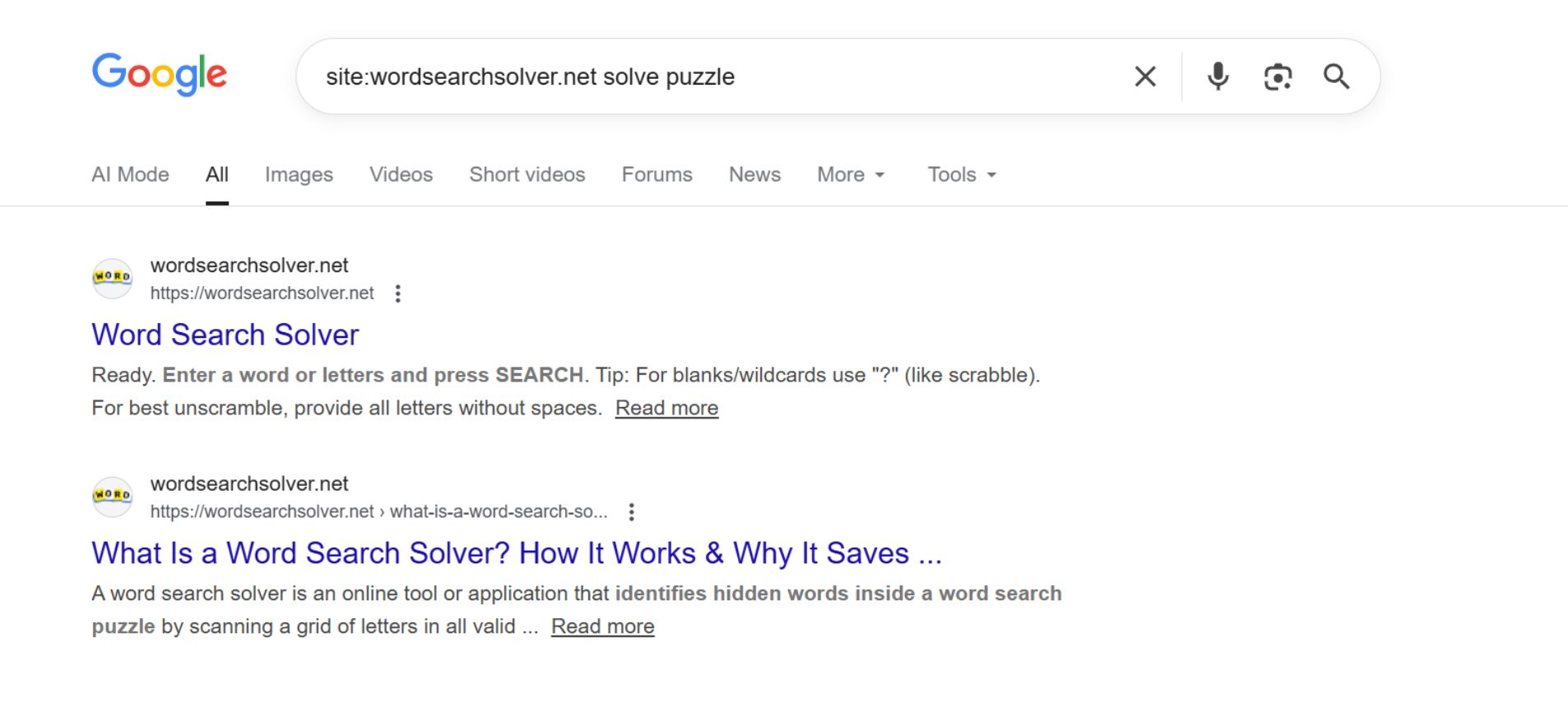
How This Works for WordSearchSolver.net
To search for a word or topic on WordSearchSolver.net, replace the domain with:
Real Examples
Find articles about mindfulness:
You will find pages mentioning printable puzzles:
Find guides related to solving puzzles:
Google will now return only pages from WordSearchSolver.net that contain those words.
Tips for Better Results
-
Use quotation marks for exact phrase matches
-
Remove quotes for broader results
-
Combine keywords to narrow search intent
Method 3: Use a Website’s Internal Search (When Available)
Best for: Blogs, stores, documentation hubs
Some websites offer built-in search tools—but results depend heavily on how the site is built.
How to improve results:
-
Search single keywords, not full sentences
-
Try synonyms if results are empty
-
Sort by relevance when possible
Known limitations
Internal search may exclude:
-
Comments
-
Older or archived pages
-
PDFs
-
Dynamically loaded content
If results seem incomplete, switch to Google site search.
Method 4: Search for a Word on Mobile (iPhone & Android)
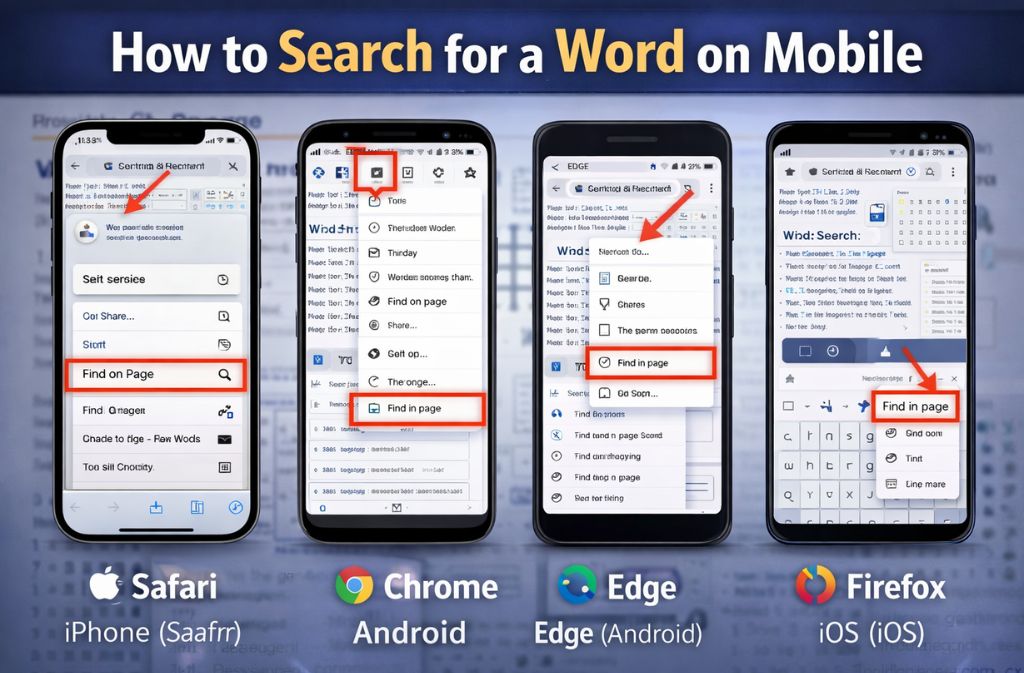
iPhone (Safari)
-
Open the webpage
-
Tap the Share icon
-
Select Find on Page
-
Enter your word
Android (Chrome)
-
Tap the three-dot menu
-
Select Find in page
-
Enter your word
Other mobile browsers
-
Edge (Android): Menu → Find on page
-
Firefox (iOS/Android): Menu → Find in page
Mobile search tools are usually hidden inside menus, which is why many users miss them.
Method 5: Search for Words in PDFs and Documents
PDFs opened in browsers
-
Use the PDF viewer’s search bar, not Ctrl + F
-
The browser find may not work correctly
Scanned PDFs
If the PDF is a scanned image:
-
Text is not searchable
-
OCR (Optical Character Recognition) is required
Solution:
Open the file in Google Drive, Adobe Acrobat, or an OCR-enabled tool to convert images into searchable text.
Why Ctrl + F Sometimes Fails (Advanced 2026 Troubleshooting)
If none of the methods above work—and you’re sure the word exists—modern website architecture is usually the reason.
1. Shadow DOM & iFrames (Very Common in 2026)
Many modern websites (banking portals, dashboards, SaaS tools) use Shadow DOM or iFrames. Standard browser search cannot access these areas.
How to search inside them
Use Chrome DevTools Global Search
Steps:
-
Open DevTools
-
Windows:
F12orCtrl + Shift + I -
Mac:
Cmd + Option + I
-
-
Press:
-
Windows:
Ctrl + Shift + F -
Mac:
Cmd + Option + F
-
-
Type the word
Why it works
This performs a global search across all loaded files, including:
-
iFrames
-
JavaScript-rendered content
2. Searching Text Inside Images & Videos (OCR)
Many websites display important text as:
-
Images
-
Infographics
-
Video slides
Browser search can’t detect this because it’s not HTML text.
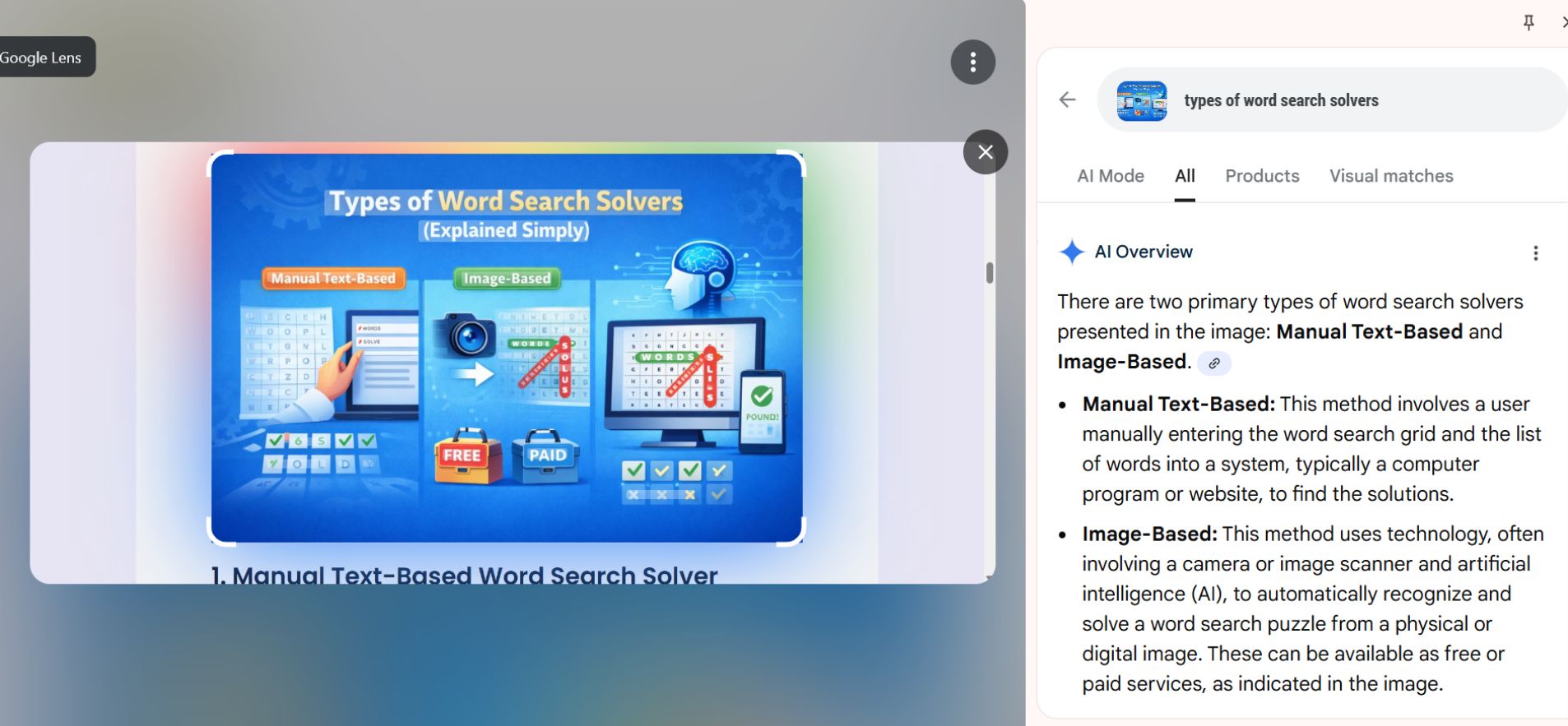
Fast solution: Google Lens (Chrome)
-
Right-click an image or paused video
-
Select the Search image with Google
-
Choose Text
-
Highlight or search extracted words
Advanced option
AI browser assistants can scan entire page layouts and extract visual text using OCR.
3. Searching Network Responses (Hidden Data)
Sometimes the word exists in:
-
Infinite scroll lists
-
Background API responses
-
Content that hasn’t rendered yet
How to search background data
-
Open DevTools (
F12) -
Go to the Network tab
-
Use the Search (🔍) icon
-
Enter your word
This shows whether the word exists in the site’s data—even if it’s hidden from view.
The Right Search Method for Each Situation
| If the word is… | Use This Method | Why |
|---|---|---|
| Visible on the page | Ctrl / Cmd + F | Fastest |
| Somewhere on the site | Google site: search |
Searches all indexed pages |
| Hidden in UI components | DevTools Global Search | Bypasses Shadow DOM |
| Inside images or videos | Google Lens / OCR | Converts visuals to text |
| Loading dynamically | Network Response Search | Finds raw data |
Common Mistakes to Avoid
-
Assuming Ctrl + F searches the entire website
-
Forgetting quotation marks in Google searches
-
Searching before content fully loads
-
Using long sentences instead of keywords
-
Ignoring mobile browser tools
These mistakes explain most “search doesn’t work” complaints.
Expert Tips for Faster Results 2026
-
Scroll once before using Ctrl + F on infinite pages
-
Use Google Site Search instead of weak internal tools
-
Search singular and plural variations
-
Bookmark frequently searched pages
-
Use DevTools when working inside web apps
As of 2025, JavaScript-heavy websites make Google and DevTools search more reliable than basic browser find.
FAQs
Q. How do you search for a word in an entire website?
To search for a word across an entire website, use Google’s site: operator. Type site:website.com keyword into Google to search all indexed pages on that domain.
Q. What can I use instead of Ctrl + F?
If Ctrl + F doesn’t work, you can use Google site search, a website’s internal search bar, Find on Page on mobile browsers, or DevTools Global Search for modern web apps.
Q. Why doesn’t Ctrl + F find my word?
Ctrl + F may fail if the text is hidden in menus, loaded dynamically with JavaScript, displayed inside an image, or rendered using Shadow DOM.
Q. How do I search for a word on a website on iPhone?
On an iPhone, open the webpage in Safari, tap the Share icon, select Find on Page, and enter the word you want to search.
Q. Can you search text inside images on a website?
Yes. You can search text inside images using Google Lens or OCR-enabled tools that extract text from images and make it searchable.
Q. How do developers search hidden website text?
Developers use DevTools Global Search to scan all loaded files, or Network Response search to find text inside background data before it appears on the page.
Conclusion
Searching for a word on a website shouldn’t feel like trial and error. Once you know which tool matches which situation, the process becomes fast and predictable.
Use:
-
Ctrl + F for pages
-
Google site search for websites
-
Find on Page for mobile
-
DevTools & OCR for modern web apps
Together, these methods cover nearly every scenario you’ll encounter in 2025 and beyond. Mastering how to search for a word in a website is one of the simplest ways to work smarter online.
Related: What Is a Word Search Solver? How It Works & Why It Saves Time